

🔑 Org OnlyNew
🧪 This feature is currently in early access and available to select organizations.
What is this feature?
The MCP Python Tool allows AI in your Playlab apps to write and execute real Python code during a conversation. Instead of generating code for users to run elsewhere, the AI writes code, executes it in a secure sandbox, reads the output, and returns the actual result, all within a single turn.What is the Rationale for this feature?
Language models are probabilistic: they predict likely outputs based on patterns, which makes them powerful for language tasks but unreliable for precise computation. Math, data aggregation, and file generation require deterministic execution, where the same input always produces the same correct output. Python code provides that guarantee. By combining LLM reasoning with actual code execution, the Python Tool lets AI handle the logic and language while Python handles the numbers. This is especially important in education, where grade calculations, data summaries, and generated reports need to be accurate, not approximate.Watch MCP Python Tool in Action
Setup Instructions
Enable the MCP Python Tool
Navigate to your app’s Tools settings and toggle on the Python Tool. It will appear in the tools list with a 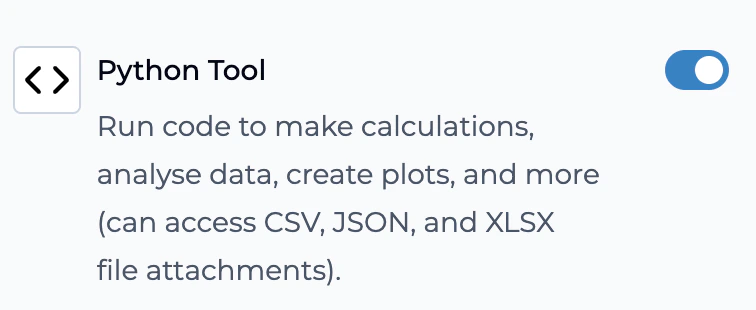
< > icon and the description: “Run code to make calculations, analyse data, create plots, and more (can access CSV, JSON, and XLSX file attachments).”If you do not see the Python Tool option, your organization may not yet have access. Contact support@playlab.ai to request early access.
Select an MCP-Compatible Model
Ensure your app is using an AI model that supports MCP tool calls. Recommended models:
- Claude Sonnet 4.6: strong balance of reasoning and execution speed
- GPT 5.2: excellent for data analysis and structured outputs
- Gemini 3.1 Pro: high accuracy with complex multi-step computations
Configure Your App Prompt
Add instructions to your app prompt to help the AI know when and how to use the tool:
Test with a Sample Task
Try a query that exercises the tool end-to-end. Good starter prompts:
- “A student scored 78, 84, 91, and 65 on four assignments. What is their average grade?”
- “I’ll upload my class roster as a CSV. Can you group students by reading level and count how many are in each group?”
- “Generate a bar chart of quiz scores by class period and export it as an image”
What Can It Do?
Sample Workflows
Here are a few ideas to get you started, but don’t stop here. The best way to discover what’s possible is to play around and experiment. Describe whaat you want and try things you’re not sure will work, and see what happens.Grading & Scoring
Grade calculations require exact arithmetic. The Python Tool computes weighted averages, flags students below thresholds, and exports a formatted gradebook with no rounding errors and no hallucinated scores.
Data Analysis
LLMs summarize data in words; Python actually counts it. Upload attendance records or survey results and get real aggregates grouped, filtered, and sorted correctly every time.
Report Generation
Generating a structured XLSX or CSV from data is not something a language model can do reliably on its own. The Python Tool writes and runs the code that builds the file and hands it back as a download.
Math & Computation
Multi-step calculations are where LLMs drift. Python executes them exactly, useful for checking student work, running statistical analyses, or computing results that need to be verifiably correct.
Data Visualization
Charts require precise data bindings that LLMs cannot render. Python generates accurate bar charts, line graphs, and scatter plots from real data and exports them as images ready to use in slides or handouts.
Lesson Material Generation
Turn a structured outline or dataset into a formatted .docx with headers, tables, and content blocks. Teachers get an editable Word file, not a block of text to copy and paste.
PowerPoint Generation
Python builds .pptx files with real slide structure. Feed it a lesson outline or vocabulary list and get a downloadable deck ready to present, something a language model alone cannot produce.
Math Diagrams
Geometric figures, function plots, and number lines require precise rendering. Python generates them from equations or descriptions and exports them as images for worksheets or assignments.
Important Behavior Changes
Sandbox Resets After Limits
Sandbox Resets After Limits
Code runs in an isolated sandbox that is automatically reset after it reaches resource limits (memory, execution time, or after the conversation ends). Variables and files created in one turn are not guaranteed to persist to the next. Design prompts and workflows with this in mind, as each code execution should be self-contained when possible.
Code Execution vs. Code Generation
Code Execution vs. Code Generation
When the MCP Python Tool is enabled, the AI will attempt to run code rather than just display it. Users will see the actual output (numbers, tables, files) rather than a code block. If you want the AI to show code without running it in specific cases, instruct it explicitly in your prompt (e.g., “show the code but do not execute it”).
Model Compatibility
Model Compatibility
This is an MCP tool, which requires a model that supports the Model Context Protocol. If a non-MCP model is selected in your app, the tool will be silently unavailable and the AI will fall back to generating code without running it. Always verify your selected model supports MCP before enabling this tool.
No Internet Access in Sandbox
No Internet Access in Sandbox
The execution sandbox does not have internet access. Code that attempts to fetch URLs, call external APIs, or download packages will fail. All data processing must use files or data already present in the conversation.
Frequently Asked Questions
What file types are supported?
What file types are supported?
The list below covers commonly used formats, but it is not exhaustive — the Python Tool can work with additional file types depending on the task.
| File Type | Read | Generate |
|---|---|---|
| JSON | ✅ | ✅ |
| XLSX / Excel | ✅ | ✅ |
| CSV | ✅ | ✅ |
| Plain text | ✅ | ✅ |
| DOCX / Word | ✅ | ✅ |
| PPTX / PowerPoint | ✅ | ✅ |
Is the code execution secure?
Is the code execution secure?
Yes. Python code runs in an isolated sandbox with no access to your server, other users’ data, or the internet. Each execution environment is separate and automatically cleaned up after use.
Can students upload files for the AI to analyze?
Can students upload files for the AI to analyze?
Yes. If your app allows file uploads, users can upload spreadsheets or data files and ask the AI to analyze them using Python. The tool can read the uploaded file and return results inline.
What happens if the code has an error?
What happens if the code has an error?
The AI can see the error output and will typically retry with corrected code automatically. This self-correcting behavior means most minor bugs are resolved without the user needing to intervene.
Can the AI generate files for users to download?
Can the AI generate files for users to download?
Yes. The AI can generate files (XLSX, CSV, DOCX, PPTX, JSON, etc.) and surface them as downloads in the conversation. This is useful for apps that help teachers produce gradebooks, slide decks, lesson materials, or data exports.
Which organizations have access?
Which organizations have access?
The MCP Python Tool is currently in early access and available to select organizations. Contact support@playlab.ai to request access for your organization.
Can I disable the tool after enabling it?
Can I disable the tool after enabling it?
Yes. You can disable the MCP Python Tool at any time from your app’s Tools settings. The AI will return to generating code descriptions without executing them.
What's the difference between running code and deploying code?
What's the difference between running code and deploying code?
Running code means the AI writes Python and executes it immediately inside a secure, temporary sandbox during your conversation. The code runs once, returns a result (a number, table, file, or chart), and is then discarded. Nothing persists after the conversation ends.Deploying code means publishing code to a server or environment where it runs continuously or on demand over time — like a web app, scheduled job, or API. The MCP Python Tool does not deploy code. It is strictly for in-conversation execution, not for building or hosting persistent applications.
Need Support?
We’re actively expanding access and improving the MCP Python Tool based on feedback. Reach out to support@playlab.ai for help with setup, troubleshooting, or to request early access for your organization.Last updated: February 2026